
PowerPoint → explainer video
Turn PowerPoint into a narrated video.
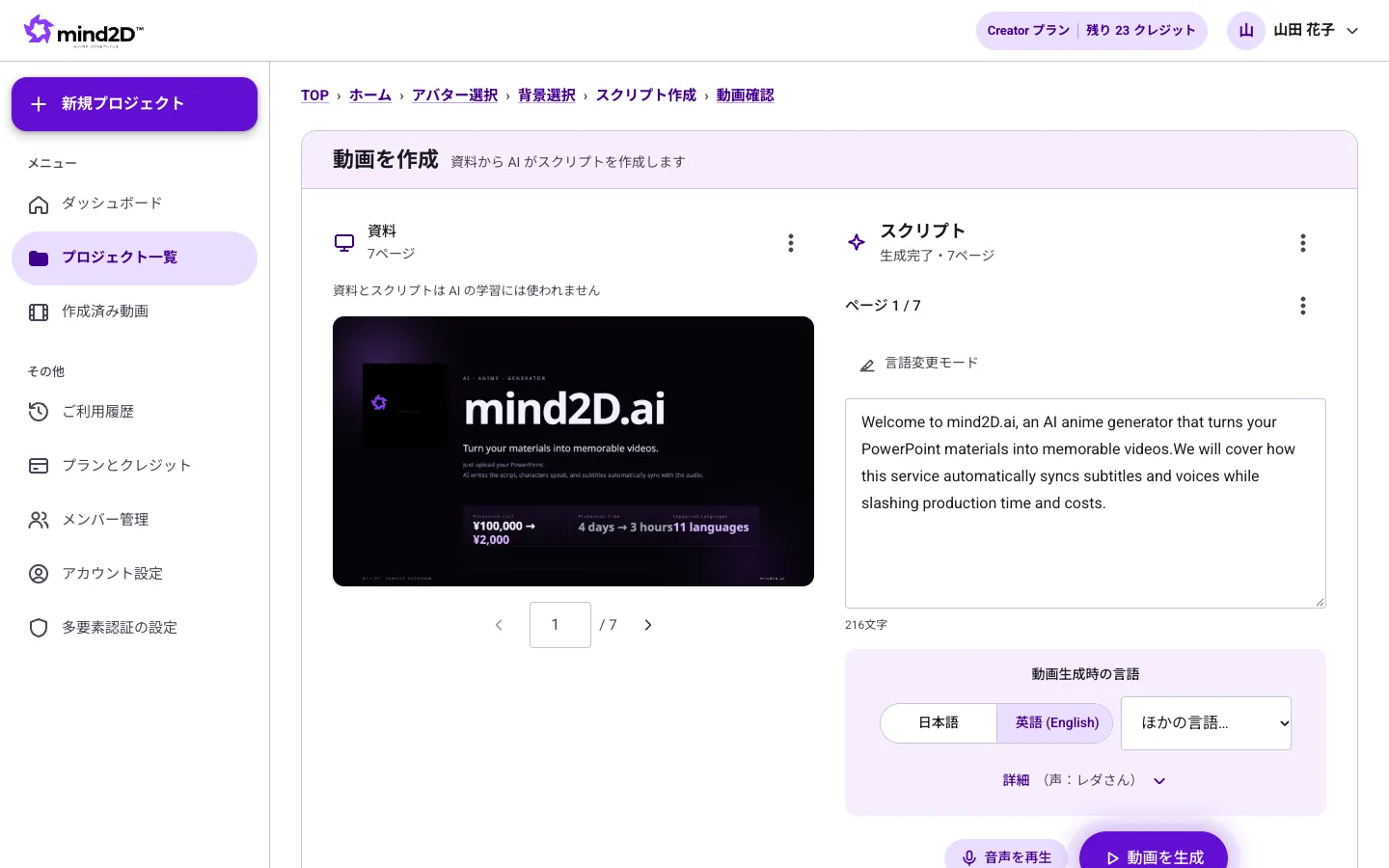
Just upload your usual PowerPoint. AI writes the script, reads it aloud, adds subtitles, and delivers an MP4 you can share right away. No recording, no hiring a narrator.
The Free plan starts with just a sign-up (documents up to 10 pages, videos up to 3 minutes, subtitles and translation in Japanese and English).
Sound familiar?
- You want to turn slides into video, but recording your own voice takes time — and every slip means another take
- PowerPoint's "Export to Video" gives you no subtitles and no narration
- Every time the deck changes, the video has to be made from scratch
With mind2D.ai
AI writes the script — or reads your notes as they are
AI turns the content of each slide into a conversational script. If your speaker notes already have the text, it can read them aloud exactly as written, without summarizing.
Voice and subtitles, added automatically
The script is read aloud in a natural voice with subtitles. Choose from 30 voices, and register company or product names in the dictionary to get the pronunciation right.
Animation steps are reproduced
PowerPoint animations — text and diagrams that appear on click — are imported step by step, so the screen advances in time with the explanation.
Edit the text, nothing else
Fix a line in the script, export again, and the video is updated. Keeping up with deck revisions is easy.
Just 3 steps
- STEP 1
Upload your PowerPoint
Drop in the .pptx as it is. PDF files work too.
- STEP 2
Check the script and voice
Read the AI-written script and edit only what needs changing. Pick your character and voice too.
- STEP 3
Export the video
Export as an MP4 with narration and subtitles, ready to share or publish to your LMS.
Frequently asked questions
Can I use PowerPoint speaker notes?
Yes. Slides with notes can be narrated using the note text exactly as written. For slides without notes, AI creates a script from the slide content.
Are PowerPoint animations reflected?
Text and diagrams that appear one after another on click are imported step by step, so the screen advances along with the explanation. The motion itself (fly-ins, spins and so on) is not reproduced.
What can I use the finished video for?
It exports as MP4, so you can use it in internal shared folders, on YouTube, in an LMS (e-learning), in sales presentations and more.
Can I make videos in English or other languages?
Yes. The script and subtitles can be translated into 12 languages and narrated in a voice for that language. With PowerPoint, the text inside the slides can be translated too (up to 50 slides).